iPhone (Safari)
Use Safari — other browsers on iPhone usually cannot add FlashHoops to the Home Screen or deliver push notifications the same way.
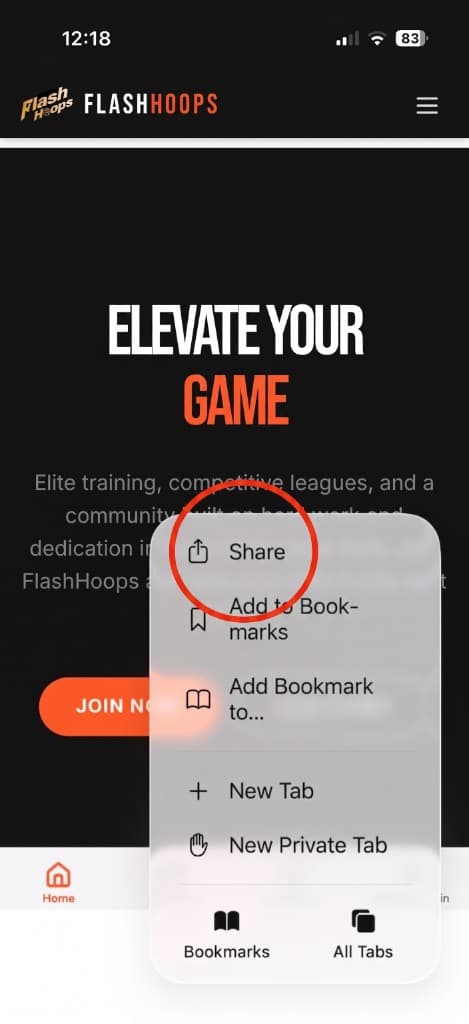
1. Tap Share
Open flashhoops.org in Safari, then tap the Share button (square with an upward arrow).
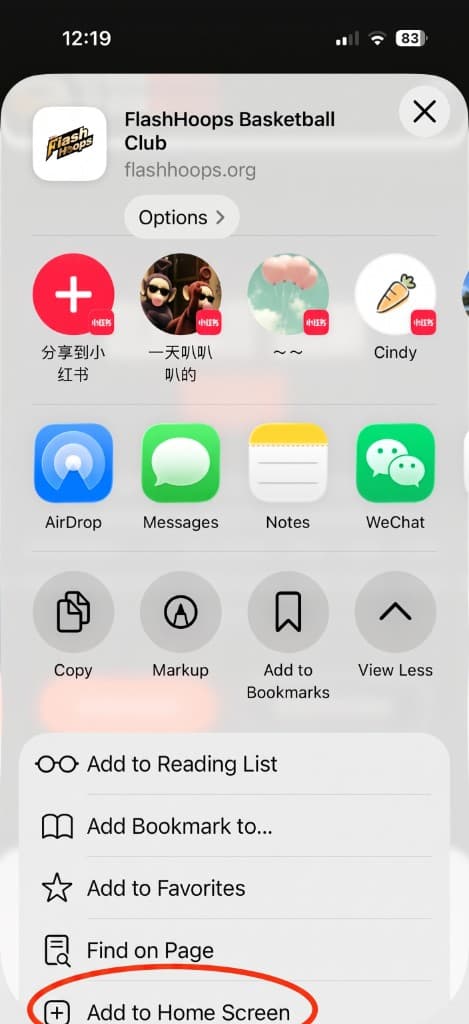
2. Add to Home Screen
In the share sheet, scroll and tap Add to Home Screen, then confirm. Open FlashHoops from your home screen and allow notifications when prompted.
Android (Chrome)
Use Chrome for the most reliable install and notification experience.
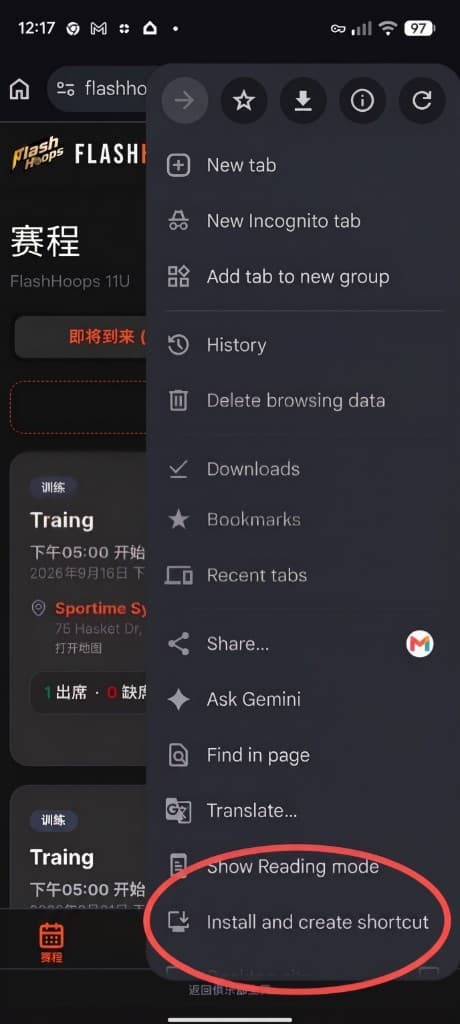
1. Install from the browser menu
Open flashhoops.org in Chrome, tap the three-dot menu (⋮), then choose Install and create shortcut (wording may vary slightly by Chrome version). Open the app from your home screen and allow notifications when prompted.
After installing
Open FlashHoops from your home screen (not only from the browser tab). In My Account → Notification Settings, turn on mobile alerts and allow notifications when your phone asks. That is how session and team push alerts work best.